Guide: Protected Shops AGB Connect for Afterbuy
Configuration of the 'Protected Shops AGB Connect' interface module for the Afterbuy shop software.
-
1
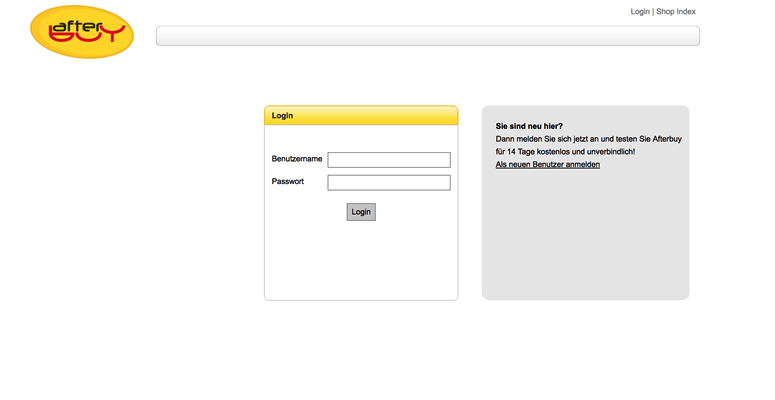
Log in to the admin area of your Afterbuy shop.
-
2
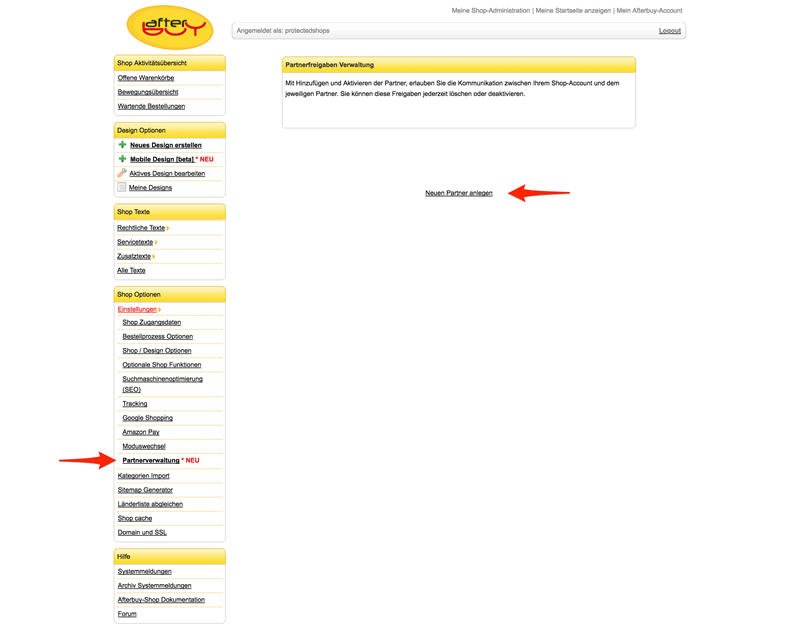
Go to 'Shop Options' -> 'Settings' -> 'Partner Management'. There, select 'Create new partner'.
-
3
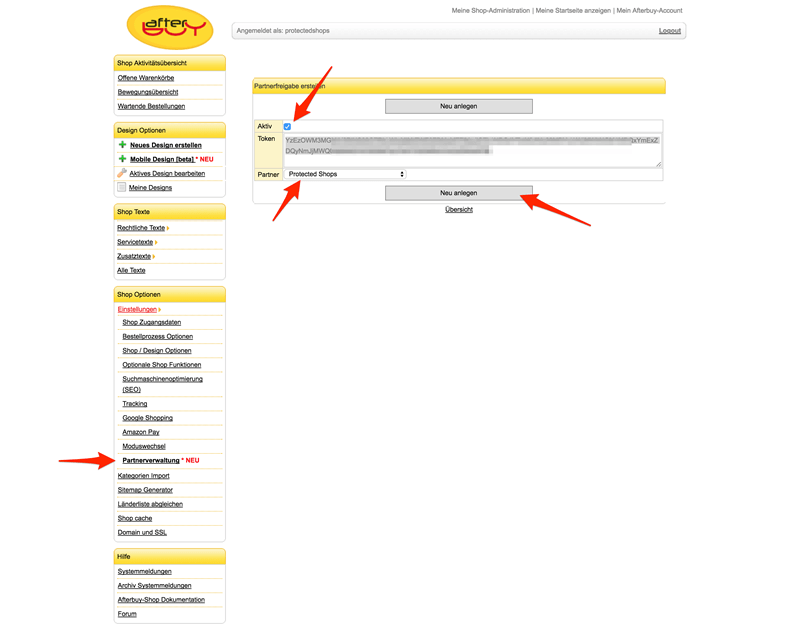
Under 'Partner', select Protected Shops. Make sure that 'Active' is also selected. Copy the generated token, then click 'Create'.
-
4
Now log in to the members' area at Protected Shops.
-
5
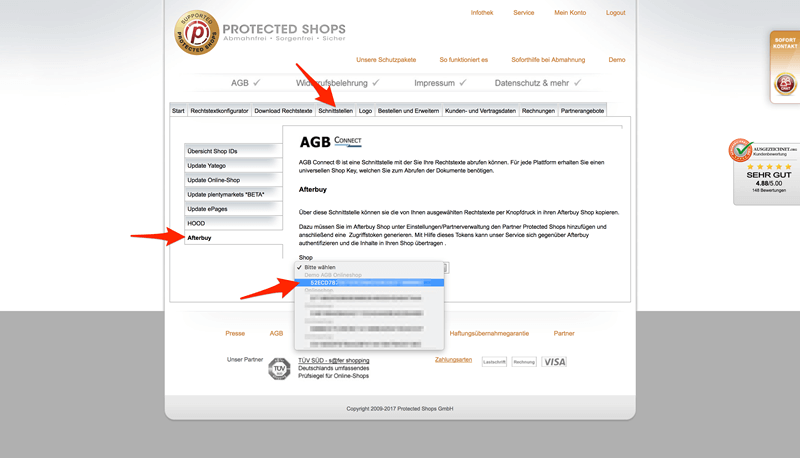
In your Protected Shops account, under the 'Interfaces' menu item, select 'Afterbuy'. Then select the corresponding online shop.
-
6
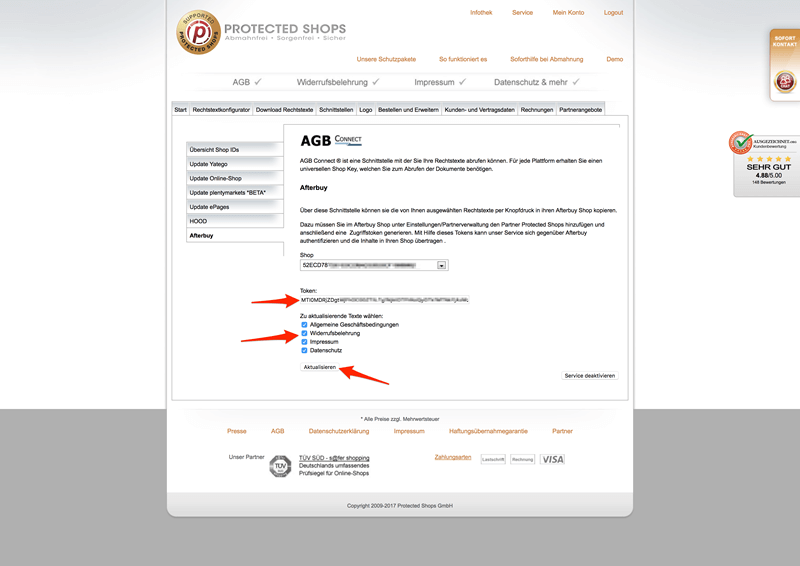
Now paste the token you copied from the Afterbuy backend here, select the pages to be updated, and then click 'Update'.
-
7
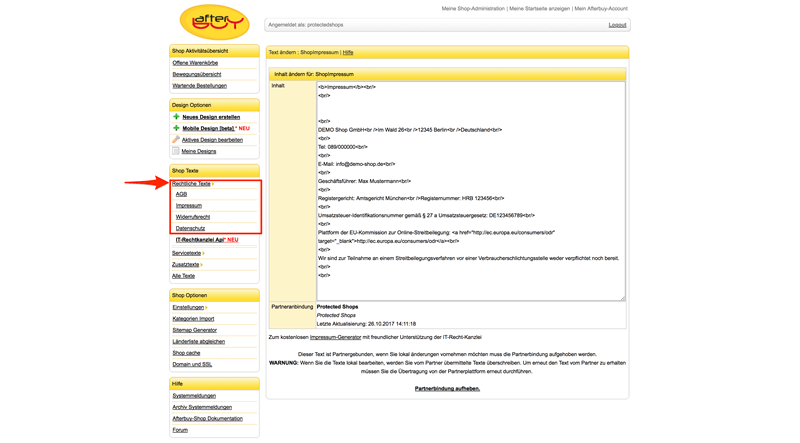
In the Afterbuy backend, under 'Shop Texts' -> 'Legal Texts', check whether the synchronization was successful.
-
8
You have now successfully set up the synchronization of your Afterbuy shop's legal texts with the legal texts from Protected Shops.